
Photo Editing
In the course of my studies, I have gained experience editing and manipulating photos using Adobe Photoshop CS5. Here are several examples that showcase my Photoshop abilities.
Example One
I used the folowing process to edit this photo, called "Autumn:"
- I performed color correction using the Curves panel by selecting the black, white, and midtone gray points in the photograph.
- I sharpened the image by using an Unsharp Mask (Amount: 100%, Radius: 1 px, Threshold: 3 levels).
- I sharpened the yellow Warning sign further by using the Sharpen Tool.
- I used the Burn Tool to darken the washed-out or overly bright parts of the photograph, which were primarily in the sky surrounding the trees.
- I noticed that many of the tree branches had a bright magenta tone on them, so I used the Hue/Saturation panel to attempt to fix this. First, I tried selecting only the magenta tones using a variety of tools, but nothing would select quite all of the affected areas. I decided to try removing these tones by lowering the Saturation of the Magentas to -82 and the Lightness of the Magentas to -36 in the entire photo, and surprisingly, it worked extremely well. Decreasing the Saturation removed the magenta hues, and decreasing the Lightness made the formerly magenta tones blend in with the normal color of the branches.
| Before | After |
 |
 |
Example Two
I performed the following changes to modify this image, "Hairstyle:"
- I performed color correction using the Curves panel by selecting the black, white, and midtone gray points in the photograph.
- I used the Red Eye Tool to remove the red eye problem in the photo.
- I used the Clone Stamp Tool to hide several of the blemishes on my face and the Patch Tool to remove the bright spot on my forehead.
- To sharpen the entire image except for the skin, I used the Sharpen Tool with a very wide brush. Since this sharpened the image a little more than I wanted it to, I lowered the opacity of the layer to 71%.
- I sharpened the eyes using the Sharpen Tool with a very small brush and then lowered the opacity of this layer to 70%.
- I lightened the shadows around the eyes by selecting the area around the eyes with the Lasso Tool, brightening the skin areas with the Dodge Tool, and then reducing the opacity of the layer to 20%.
- To whiten the teeth, I used the Magnetic Lasso tool to select the teeth and then used the Hue/Saturation panel to adjust the color. I lowered the Saturation of the Yellows to -80 and increased the Lightness of the Master to +15.
- The hair on top of my head was still slightly too dark, so I used the Dodge Tool to brighten it.
| Before | After |
 |
 |
Example Three
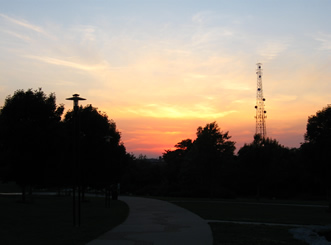
I used the following process to modify this photo, "Sunset:"
- I performed color correction using the Curves panel by selecting the black, white, and midtone gray points in the photograph.
- To remove the distracting tower, I used the Clone Stamp Tool, the Patch Tool, and the History Brush Tool. First, I used the Clone Stamp Tool to sample various colors from the sunset and paint them over the part of the tower that touched the trees. Next, I used the Patch Tool to select the remaining parts of the tower and dragged the space over to a cleaner part of the sky. Finally, I used the History Brush at the area directly on top of the trees because I had used the Clone Stamp Tool a little too much, causing the tops of the trees to look blurry.
- To brighten the ground and trees, I used the Quick Selection Tool with the Refine Edge options in order to make a good selection; then, I used the Brightness/Contrast panel to increase the Brightness to 150.
- After brightening the ground, I realized that there was a rocky area in the bottom-right corner of the photograph that was distracting, so I removed it by selecting the area with the Lasso Tool and filling the space with the Content-Aware feature. It took a few tries to get the space to fill properly. Once the rocks were removed to my liking, I needed to use the Content-Aware fill again to make the sidewalk look smoother.
- I tried to sharpen the entire image using an Unsharp Mask, but this made the tops of the trees look patchy, so I decided that this picture looked better unsharpened.
- To maximize the amount of color displayed in the sunset, I selected the sky using the Quick Selection Tool with the Refine Edge options; then, I used the Brightness/Contrast panel to decrease the Contrast to -50. At first, I was not sure what effect this would have on the picture, but I liked what it did to the colors, so I kept the change.
| Before | After |
 |
 |